


The iPhone, especially the iPhone 5, makes a good replacement for a point-and-shoot camera, we all know that. But photos can take up a lot of space. If you have hundreds, nay thousands of photos on your iPhone, I’m assuming you don’t want to go through and tap, tap, tap to select every photo on the device. So what do you do? Well, if you have a handy Mac or Windows PC you can connect your iPhone to, it’s simple as pie. Mmmm… Pie!
(Note: This article assumes you’ve already copied the photos you want to keep to your computer, or the cloud before deciding to delete them.)
There are probably better ways to do this, I know there are utility apps for sale that can handle this, but the idea of this article is to do it without extra expense. If you know of a better way using a stock iPhone and Mac, please let me know in the comments below, and I’ll re-write this article, giving you credit where credit is due.
How to Delete All the Photos from an iPhone With a Mac

- Connect the iPhone to the computer to the Mac’s USB port using your iPhone sync/charging cable.
- Launch Image Capture. You’ll find this in the Applications Folder.
- Make sure the iPhone is selected in the device list on the left side of the screen, and Press (Command Key + A) to Select All the photos.
- Click the red Delete button, (as shown above), to delete all of the photos.
- Confirm deletion when asked. (As shown below.)
- Wait for the deletion process to finish. (If you have Gigs of photos on your iPhone, this can take awhile.)
 How ToDelete All The Photos from an iPhone Using a Windows PC
This should work in any recent version of Windows, I used Windows 8:
- Connect the iPhone to the computer’s USB port using your iPhone sync/charging cable.
- Open “My Computer” and choose “Apple iPhone.”
- Open to folders “Internal Storage” and then open “DCIM”, you’ll see folders containing the photos and videos that are on the iPhone.
- Select all the photos and/or videos (CRTL-A), then hit the delete key on your keyboard, or right click and select “delete,” as shown below.
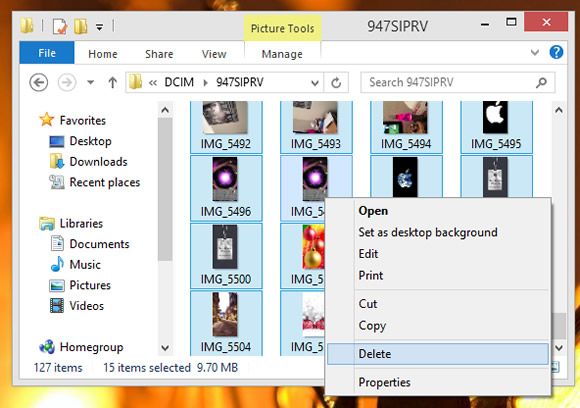
It’s easier to delete the photos via Windows, since Windows just treats the attached iPhone as just another hard drive. Again, be prepared to wait awhile, as the photos are deleted from the device.
There you go, not exactly easy-peasy, but easier and faster than the “tap, tap, tap” process we mentioned at the beginning.
