


Apple on Monday released macOS Tahoe 26, bring several new features to the Mac. However, one feature hasn’t gotten much attention, even though it could help you recover from your Mac crashing.
Recovery Assistant for macOS Tahoe 26
While the macOS operating system is regarded as reliable, any operating system can crash. When that happens, a new Recovery Assistant could help save the day!
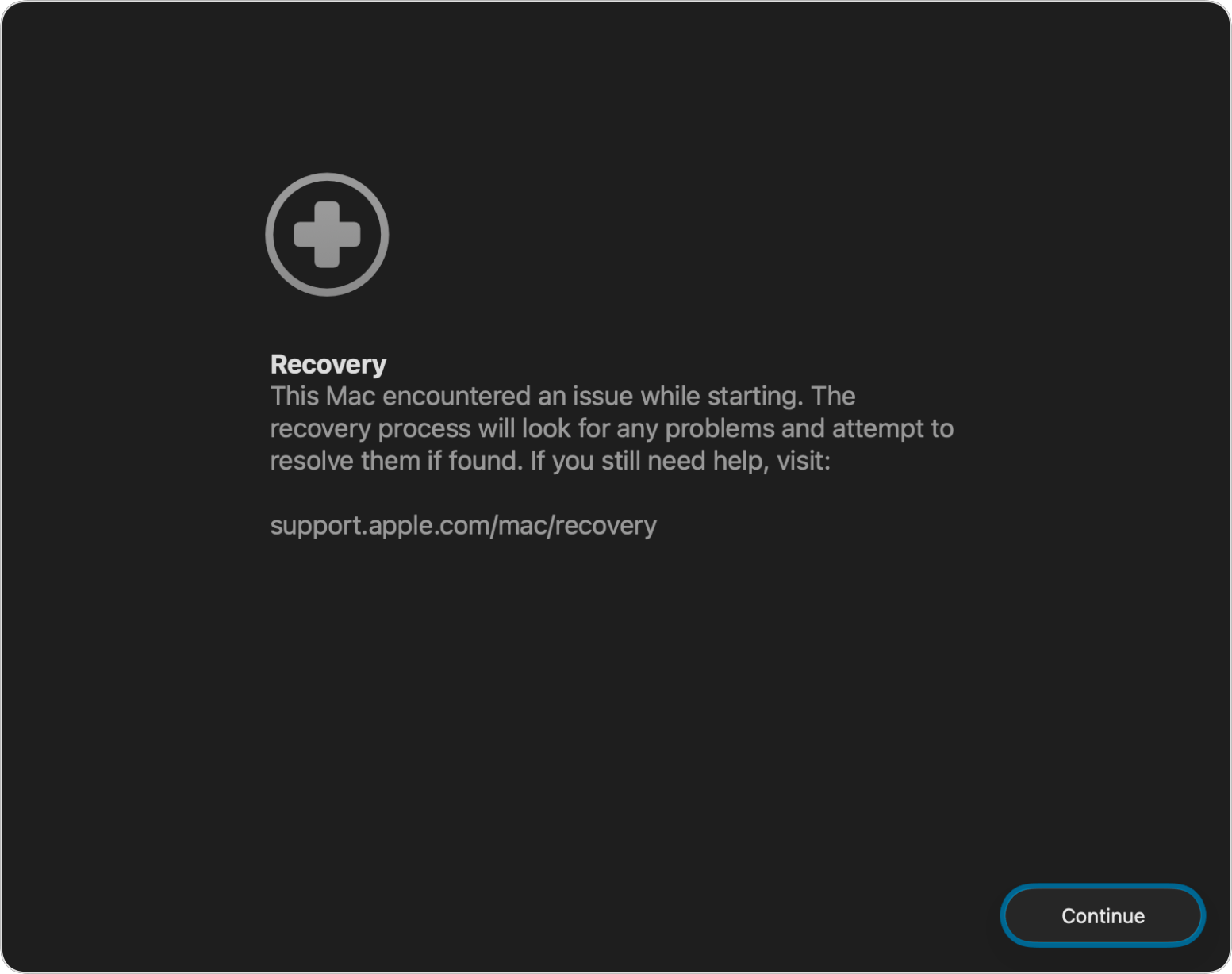
An Apple support document, published earlier this week, explains that if your Mac runs int0 certain issues during startup, it may automatically restart and open Recovery Assistant.
If it does so, here’s what you should do:
- Recovery Assistant shows a first-aid symbol and says that this Mac encountered an issue while starting. Click Continue.
- Read the information about collection of diagnostic data, which is treated in accordance with Apple’s privacy policy. Then choose whether to send this data to Apple. Your choice doesn’t affect the outcome.
- If asked to enter a password to unlock the disk, enter the administrator password used to log in to your Mac. Click Unlock.
- Recovery Assistant needs an internet connection to download the latest information about software issues that could be affecting your Mac. If asked, choose a Wi-Fi network. Captive networks and networks that require 802.1X authentication aren’t supported.
- When the recovery process is complete, Recovery Assistant reports that it recovered your device successfully, that it was unable to recover your device, or that no known issues were found. Click Restart Mac.
- If your Mac starts up successfully, you might get a notification to recover your iCloud data. Click the notification to open System Settings, or choose Apple menu > System Settings, then click Recover iCloud Data in the sidebar. You’re then asked to sign in with your Apple Account.
- If your Mac doesn’t start up successfully, it has an issue that Recovery Assistant can’t resolve. In that case, learn what else you can do if your Mac doesn’t start up all the way. For example, you might need to repair your startup disk or reinstall macOS.
Recovery Assistant can also be run manually from the Utilities menu in macOS Recovery mode.
By using Recovery Assistant, you may be able to avoid a costly visit to the repair shop.
