

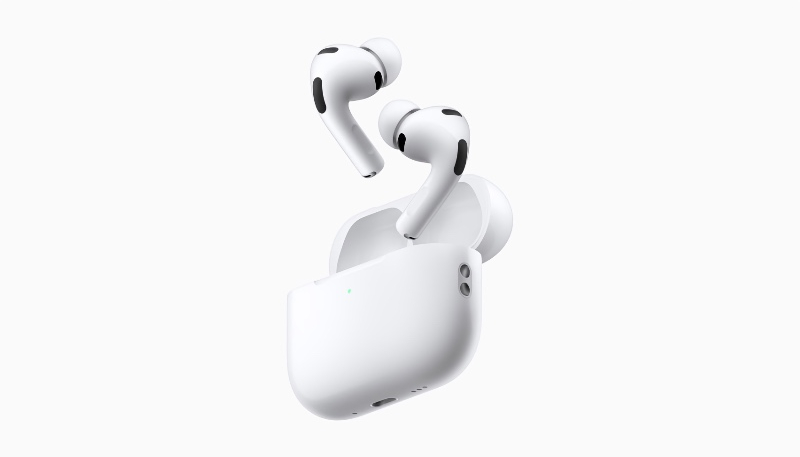
Do you wear AirPods during your daily commute and hate how your music, podcast, or private phone call suddenly switches to blasting out of your vehicle’s speaker when you fire up your buggy? Fear not, beleaguered one, iOS 26 has a solution.
Apple has added a new setting in iOS 26 called “Keep Audio with Headphones” that blocks your iPhone from automatically switching its audio from your AirPods to Bluetooth speakers or CarPlay in your ride when you’re listening to content through your AirPods. It’s easy to toggle the new feature on, preventing nearby folks from knowing you’re listening to “Do Ya Wanna Taste It” by Wig Wam for the 37th time on repeat.
How to Keep Audio Playing in Your AirPods
- Open the Settings app on your iPhone.
- Tap “General.”
- Tap “AirPlay & Continuity.”
- Toggle the “Keep Audio with Headphones” switch to the on position.
- That’s it. No, really.
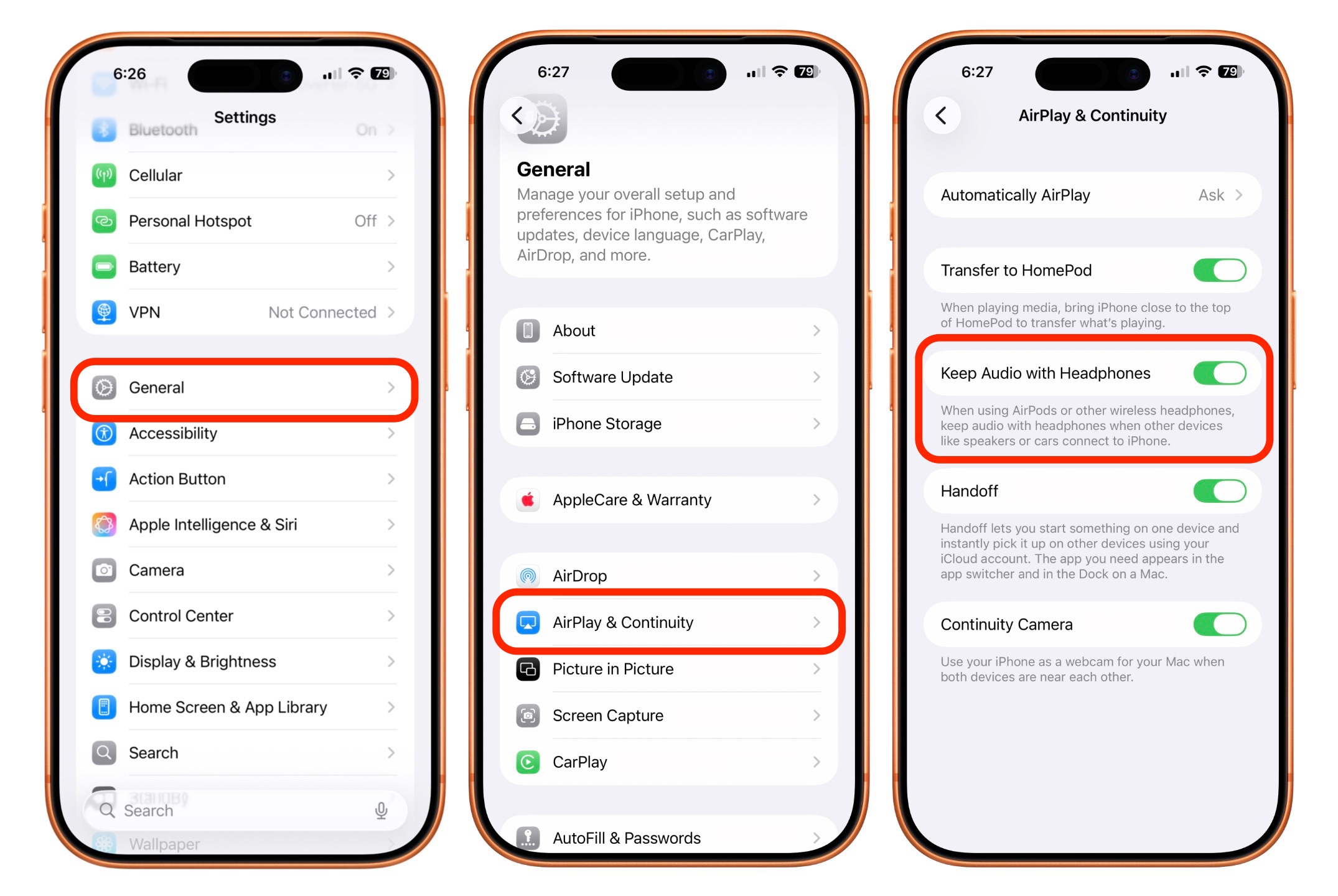
As long as the setting is enabled, your podcasts, music, or calls will continue to be routed to your AirPods, even when your iPhone does its thing and automatically connects to your vehicle’s Bluetooth system or to CarPlay. You can still manually switch to your car’s speaker via CarPlay or Control Center when you’re ready to share the invisible bone.
It should be noted that Mactrast does not endorse driving a vehicle while wearing and using AirPods or any other earbuds. It could possibly even be illegal in your area, so be sure to check your state’s distracted driving laws before doing so. If you simply must do so, leave Transparency enabled so you can hear what’s going on around you.
(First spotted by MacRumors)
