

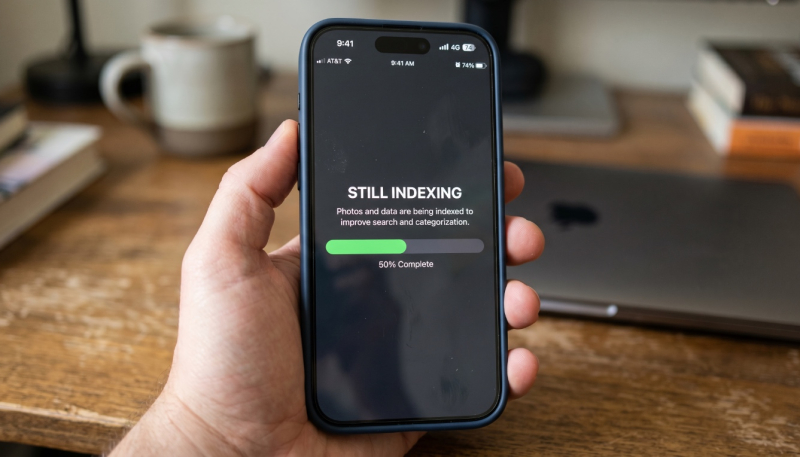
If you’re like me, I installed the first iOS 27 beta on my iPhone last Tuesday, and a week later, it’s still indexing! I still see this message in the Settings app, a full week after installing iOS 27 on my iPhone 17 Pro Max:
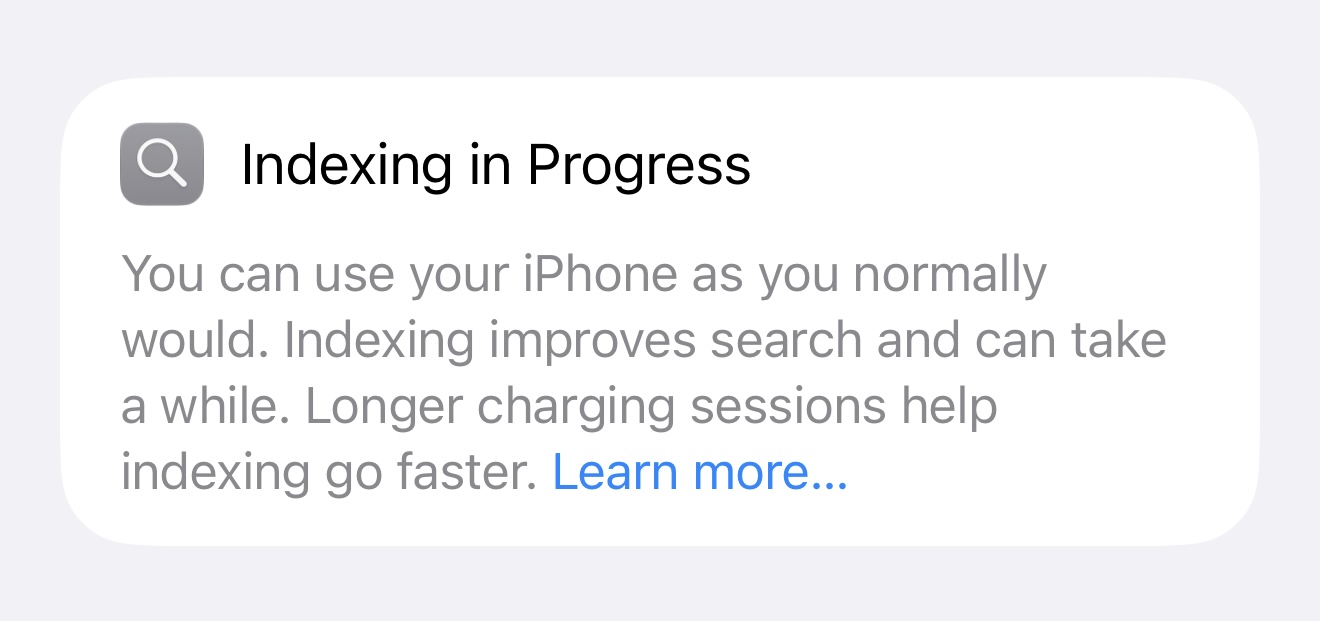
If you’re in the same boat, here’s how to check how much more indexing your iPhone has to do.
How to Check Indexing Progress on iOS 27 Beta 1
Due to iOS 27’s revamped Apple Intelligence models and the underlying Apple Foundation Models, the new OS completely overhauls how the system indexes user content. Once the beta has been installed, it completely reindexes your iPhone’s content. While there is no on-device display on the status of the indexing (other than a banner telling you it’s in process), 9to5Mac has shared a way to check how much indexing action is left, but you’ll also need a Mac.
Do the following:
- Connect your iPhone to your Mac, using a USB-C or Lightning cable
- On your Mac, open the Console app
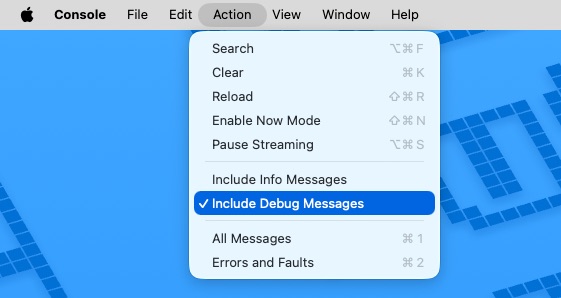
- In the Console app, click on the “Action” menu, Activate the “Include Debug Messages” option if need be
- Click your iPhone in the left-hand sidebar
- In the search field, on the top right, search for:
spotlight indexing progress - Click on the “Start” button
- On your iPhone, open Settings
- Your indexing progress should start to appear as:
PipelineCompleteness: XX%.
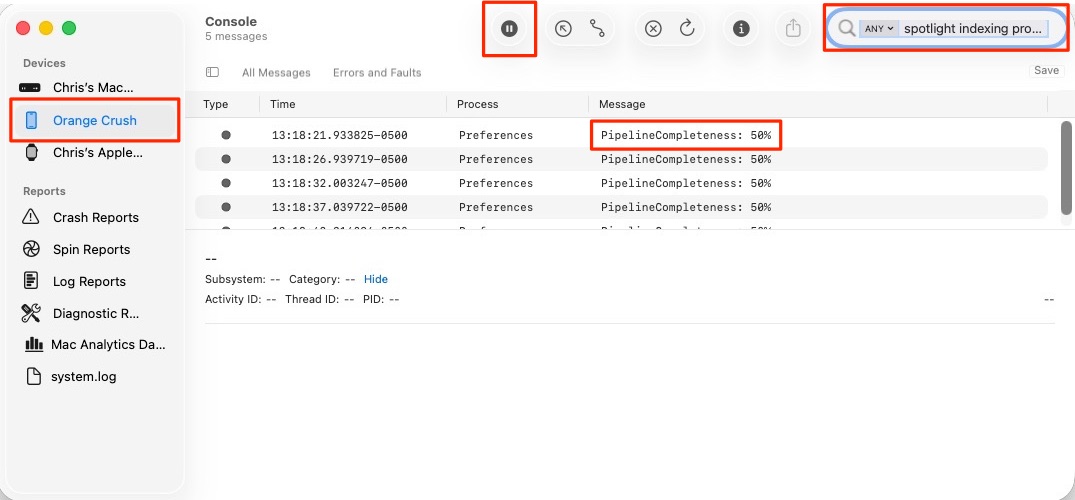
As you can see in the screenshot above, after a full week of indexing, it’s only halfway there. I guess until it’s finished, I’m living on a prayer. (I had to do it.)
This is just the first beta of iOS 27, and it’s a certainty that Apple will refine iOS 27, meaning the indexing process will complete faster for many folks. However, the length of time it’ll take to index your iPhone depends on the size of your device’s storage, and how much of that storage you’re currently using.
