

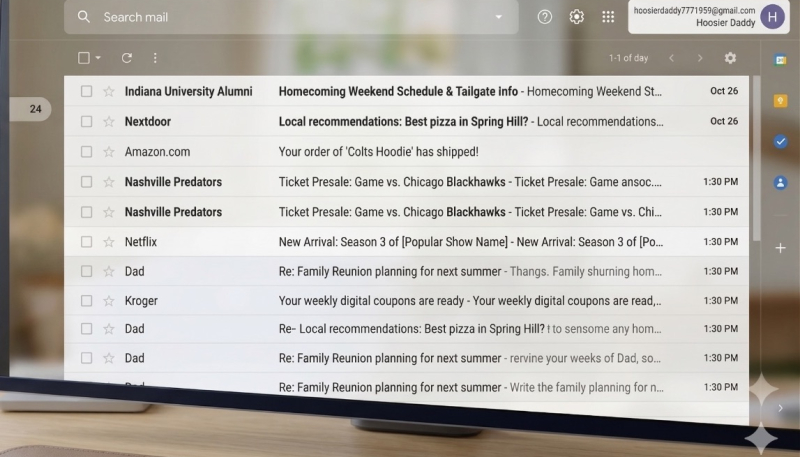
Google today announced that it is finally allowing you to change your Gmail email address. The account allows users to access their Gmail, Google Calendar, Google Photos, Google Drive, and more. Currently, the ability to change your address is only rolling out to U.S. accounts.
You can switch to any available “@gmail.com” address, and you don’t have to worry about losing you emails sent to your previous account name, as your previous email address will become an alias, meaning others can still use that address and your email will still make it to your Gmail box.
Google will allow you to change your account’s email address once per year, up to three times total. All emails and other account data and history are preserved, and you can revert to your old email address if you change your mind.
The company did not indicate if or when this functionality will be made available in other countries.
I can see this being quite useful for longtime Gmail users who may have created a casual or humorous email address, such as “hoosierdaddy7771959@gmail.com,” and would now like to have a bit more professional email address like “WhoIsYourDaddy7771959@gmail.com.” (Or you could use your first initial and your last name, I suppose.)
Here’s how to change your Gmail address:
Step 1: Check if you can change your Google Account email
- On your computer visit myaccount.google.com/google-account-email. You may be asked to sign in.
- At the top left, click “Personal info”
- Click Email
Google Account email
- Under “Google Account email”, click Change Google Account email. If you don’t have this option, it might not be possible to change your Google Account email. If you do have this option, move to step 2.
Step 2: Review potential issues
There can be some issues with Google services and features if you change your Google Account email that ends in @gmail.com to a new address that ends in @gmail.com. Before you change your Google Account email, check if any of these apply to you:
- You use a Chromebook. Learn what you should do first if you use a Chromebook.
- You use Sign in with Google for non-Google sites. Learn how this change may affect Sign in with Google.
- You connect remotely with Chrome Remote Desktop. Learn how to fix your remote connections.
We also recommend that you backup your data as a precaution. Also, some of your app settings may be reset. This is similar to when you sign in on a new device.
Google provides more details in a support document.
